App Essentials
Explore Minimalist Launcher Apps for Distraction-Free Use
Minimalist launcher apps are the ultimate way to simplify your phone and cut digital clutter. Try these evidence-based tips and transform your device into a focused, distraction-free zone today.
Advertisement
Feeling overwhelmed by endless notifications and cluttered screens? Minimalist phones are trending, and launcher apps are making it easier to focus on what matters most every day.
Simplicity is shaping the mobile experience. People value clarity and intentionality when they pick up their devices. By using thoughtful launcher apps, you can create an environment that supports healthy tech habits.
This article guides you through real examples and actionable steps. Discover launcher apps that streamline life, reduce screen stress, and help you regain control—with practical tips at every turn.
Transform Your Home Screen with Purposeful Minimalism
Adopting a minimalist launcher starts with a single action: reorganizing your home screen. This simple adjustment instantly cuts distractions and re-centers your focus.
Launcher apps offer a strong toolkit for decluttering. Prioritize only three essential apps on your home screen. Move social or entertainment apps into folders or off the first screen entirely.
Setting a Rule: Hide Unused Apps for a Cleaner Look
Deciding exactly which apps you use leads to thoughtful choices. Hide those you haven’t opened in a month. This rule changes what grabs your attention after each unlock.
“I realized I never used that shopping app,” a typical user might say. Removing one icon can feel as good as tidying a desk—replace noisy visuals with only daily essentials.
To keep the new order, set a reminder to review your launcher every quarter. This ritual prevents clutter from creeping back, making maintenance part of your routine.
Pinpointing High-Impact Widgets
Minimalist launchers usually support just one or two widgets. Choose a calendar, weather, or to-do reminder—each takes a two-second glance and doesn’t tempt you to scroll endlessly.
For example, place a daily agenda front and center. If someone asks, “When’s your appointment?” you’ll spot it instantly without hunting or opening more apps.
This intentional design flows through your phone use. Edit widgets regularly, since what’s most relevant might change each week or month with your evolving routines.
| Launcher App | Free Version? | Customization Level | Best First Step |
|---|---|---|---|
| Niagara Launcher | Yes | Medium | Add your top three daily apps and hide the rest |
| Ratio | Yes | High | Enable Focus Mode for work hours |
| Before Launcher | Yes | Low | Try its “minimal only” icon pack |
| Smart Launcher | Yes | Medium | Sort apps by category—productivity, social, tools |
| AIO Launcher | Yes | High | Use its single-screen widget setup to avoid swiping |
Build Distraction Barriers with Intentional Shortcuts
Tweaking launcher apps to limit access to time-draining features gives you room to genuinely think or relax. Start by customizing your dock—those four or five bottom-row icons.
Swap out social feeds for tools like notes or calendars. Use icons that match everyday habits, such as “Write a reminder” instead of “Scroll Instagram.”
Scenarios for Immediate Changes
Picture a user who agrees, “I keep tapping Facebook out of habit.” Replace the icon entirely, or move it to a secondary screen. That physical extra step discourages mindless checking.
A friend might ask, “Why’s your phone look so plain?” The answer: “It keeps me on track.” Launcher apps let you personalize with purpose—custom shortcuts foster conscious habits without sacrificing utility.
- Create a folder called “Break Time” for less-essential apps, which you review only after finishing a task—rewarding completion instead of fragmenting work.
- Put your journal app on the dock for fast access, making reflection as easy to start as a game or news app—reinforcing growth-oriented behavior instead of distraction.
- Limit home screen widgets to only actionable content. Try adding a single motivational quote that rotates daily to keep energy and intention high during check-ins.
- Place your meditation or focus-timer app beside communication tools. This pairing supports mindful breaks at work or between messages, so quick stress resets are second nature.
- Uninstall duplicate apps—if you have two calendars or browsers, pick one. Eliminating overlap simplifies choices, making your launcher apps work more like a curated toolkit.
As each shortcut serves a clear role, it’s easier to enjoy the clean look and purposeful navigation that a minimalist launcher enables.
Rewriting Notification Rules for Peace
Launcher apps allow for granular notification settings. Disable badges or pop-up previews for non-urgent apps, keeping only calendar alerts or calls in view.
Your lock screen then transforms into a calm workspace. Stick to a routine of ‘notification triage’ twice a day, shutting off constant pings to reclaim mental space.
- Allow only alarm and call notifications to reach you during sleep hours. This practice ensures critical messages are never missed, but everything else waits until you choose to check.
- Set priority for work apps. When you’re in work mode, only relevant notifications surface, blocking interruptions that derail your focus and letting you finish tasks faster.
- Remove notification dots from apps like games or streaming platforms. Out of sight, out of mind—temptation drops, and urgency stays linked to truly important events only.
- Put recurring reminders—like “drink water” or “take a break”—on your home screen widget only. This way, you see them at each unlock and don’t lose track of healthy habits.
- Schedule a weekly recap notification that summarizes usage trends. Use this to adjust launcher app layouts and weed out new distractions before habits set in.
Smart notification handling quickly becomes a natural part of your launcher-powered digital hygiene routine, supporting well-being without constant effort.
Refocus Fast with Simplified Navigation Features
Good minimalist launcher apps use gestures and shortcuts to accelerate daily routines. Assign a swipe or double tap for instant access to commonly used features.
Try setting a two-finger swipe gesture to open your favorite reading app. The more streamlined the navigation, the less time you spend searching and the more you get done.
Quick-Access Designs Lower Mental Load
Arrange apps vertically instead of grids for faster access. If you picture an old rotary phone, dialing one number felt different than scrolling through endless contacts.
Launcher apps that reduce decisions (only giving five main options) help stave off “choice overload.” You’ll spend seconds instead of minutes jumping from one task to the next.
Recommend updating navigation gestures monthly. Reflect on your habits: if you always open one app after another, link them with a shortcut for instant flow.
Practical Password and Search Routines
Minimalist launchers let you add quick-access search bars. Type two letters and jump right to an app or setting. This replaces frantic scrolling or searching by sight.
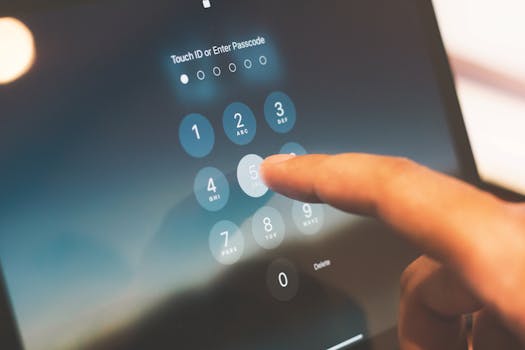
Set up secure, direct shortcuts to your password manager or banking app. Use memorable, unique icons so security doesn’t sacrifice speed—like a lock symbol for confidential apps.
Solid routines mean never fumbling for information. With a well-planned launcher, you’ll hear yourself saying, “Found it in under three seconds—just where I thought it’d be.”
Personalize Visuals Without Chaos or Clutter
You can make minimalism personal with subtle visual tweaks that support—not overwhelm—focus. Pick a neutral wallpaper with calming colors to keep the background restful.
Choose icon packs for your launcher apps that favor clarity over flash. Simple, matching shapes and soft colors reinforce the tidy aesthetic while keeping everything easy to spot.
Edit Your Color Palette for Calm
Soft blues, grays, or off-whites work best for reducing visual noise. Try changing accent colors to reflect mood or season; this keeps things fresh without adding clutter or busyness.
When a red badge appears on bright icons, it attracts your eye instantly. Consider muting unnecessary icons so important alerts stand out instead, guiding your attention in positive ways.
Maintain a wallpaper rotation for subtle interest—nature patterns, geometric forms, or a motivational quote in the corner can all add personality, while the home screen remains serene.
Refine Icon Arrangement for Quick Scanning
Arrange icons left-to-right by frequency of use, making thumb movement effortless. This supports one-handed navigation and reduces frustration, especially on larger devices or during travel.
Always keep communication icons in one cluster. This spatial memory game works like keys in a dish: grab what you need, skip what you don’t, and return instantly when you’re done.
Reevaluate the arrangement every two months. As priorities change, the launcher app’s design should evolve, mirroring your real-world organization rather than sticking to old patterns.
Reclaim Your Attention by Tracking App Usage Patterns
Minimalist launchers with built-in usage tracking help you spot habits you didn’t realize formed. Analytics tools highlight patterns—catch yourself using entertainment apps more on weekends, for instance.
Decide if you want weekly summaries or granular hourly breakdowns. Use these stats to rearrange or hide certain launcher apps until the new week begins.
Interpret Data to Change Behavior
If your stats show 40 unlocks every morning, ask what triggers those unlocks. Launcher analytics invite practical experiments, like moving news apps off the home screen for a week.
Friends might say, “Are you less glued to your phone?” After using launcher apps for a few weeks, you’ll likely notice a shift—fewer scrolls, more focused sessions.
Set monthly usage goals. As you meet them, slowly tighten the app selection or swap in more productive shortcuts, building a feedback loop that supports long-term growth.
Using Insights for Incremental Change
Look for short-term spikes after installing a new app. If it distracts or disrupts, move it to the app drawer immediately, using your launcher for deliberate access only.
Establish a recurring check-in reminder. Each time you adjust app visibility, observe how your focus and mood shift over a few days—then keep what works and iterate away from what doesn’t.
Data-driven routines root your minimalism in evidence. Launcher apps empower you to make small changes with big cumulative effects, leading to lasting improvements in digital well-being.
Encourage Sustainable Minimalism with Routine Audits
Sustainable minimalism lives through ongoing habits. Schedule a launcher audit the first Monday of each month, blocking out twenty minutes just for this refresh.
During the audit, assess which shortcuts or widgets are obsolete. Removing extras feels like tidying a neglected workspace—clearing room for new energy and focus.
Transfer this method into a list to guide each monthly review:
- Review recently installed apps; delete what’s no longer useful to prevent screen crowding before habits form.
- Check widget relevance: is your to-do list or calendar still current, or has your daily rhythm changed for the season?
- Adjust notification settings by app frequency. Keep urgent communications enabled, silence all others—ensure your launcher app doesn’t serve up noise by default.
- Revisit color and icon themes; tweak based on what felt supportive or distracting over the past month to keep your visual environment attuned to your lifestyle.
- Set a rotation date for wallpapers or motivational quotes, aligning what you see with current personal goals or upcoming milestones to refresh your mindset.
Building these steps into routine phone care protects your distraction-free setup long-term, ensuring launcher apps remain tools for intentional digital living.
Choosing the Best Minimalist Launcher for Your Lifestyle
Launcher app selection should always reflect actual needs and rhythms. A student craves simplicity for study, while a freelancer seeks productivity shortcuts and quick content sharing.
Download and test at least two launcher apps for a week each. Notice daily improvements—reduced unlocks, less noise, or increased productivity—then settle on the best fit for your device.
If you cook or work out, pin recipes or workout timers upfront. If you manage projects, prioritize contacts and collaboration tools, letting everything else drop to back pages or drawers.
Minimalist launcher apps aren’t about restriction; they’re about making your phone match real priorities. When your digital spaces feel intentional, your mind and mood follow suit, unlocking greater peace with every tap.